Technology Connections: How Digital Devices and Networks Work Together
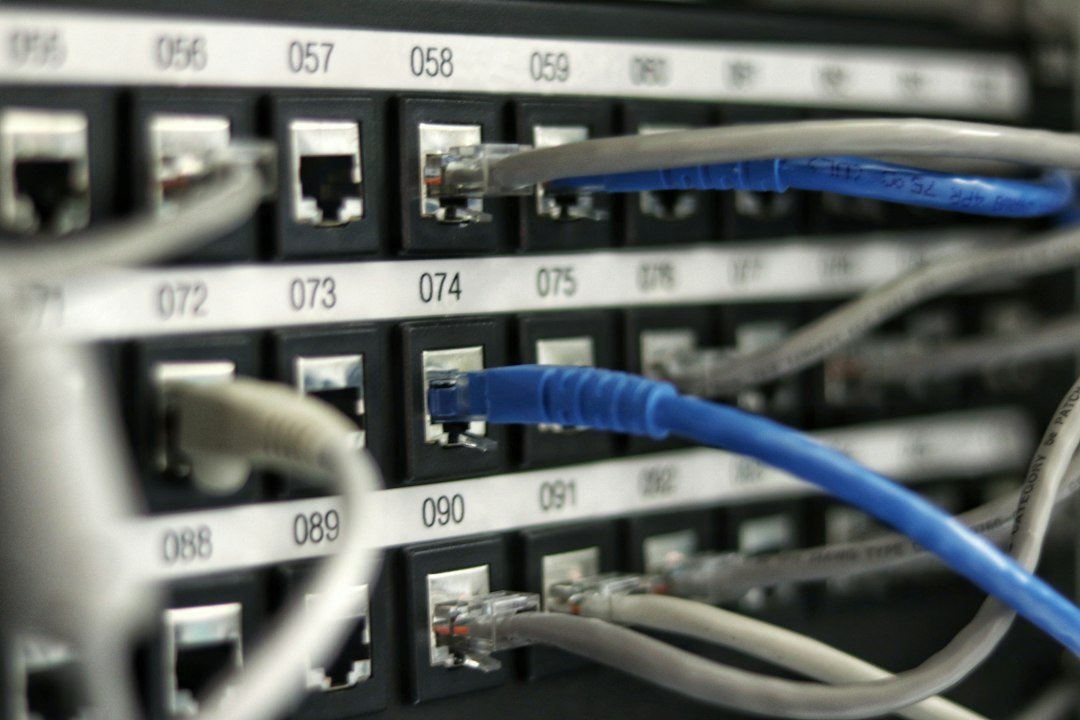
Technology connections refer to the ways digital devices communicate through networks, using hardware interfaces, protocols, and software layers to exchange data. In simple terms, it’s how your phone talks to a router, how a server talks to a printer, and how cloud services talk to each other.
Key Takeaways
- Devices connect via physical media (cables, Wi‑Fi, cellular) and logical protocols.
- Each connection follows a layered model – typically the OSI or TCP/IP stack.
- Common mistakes include mismatched speeds, incorrect IP settings, and ignoring security defaults.
- Understanding the flow helps you troubleshoot, design efficient systems, and choose the right tools.

What Are the Core Components of a Technology Connection?
A technology connection is built from three pillars: the physical medium, the networking hardware, and the communication protocols. The medium can be copper Ethernet, fiber optics, radio waves (Wi‑Fi, Bluetooth), or cellular towers. Hardware includes NICs, routers, switches, and access points that shape and forward traffic. Protocols – like TCP/IP, HTTP, or MQTT – define how data is packaged, addressed, and acknowledged.
How Does the OSI Model Describe a Connection?
The OSI (Open Systems Interconnection) model splits communication into seven layers, from raw bits to user applications. Most modern networks use the simplified TCP/IP model, which maps roughly to OSI layers 1‑2 (Physical & Data Link), 3‑4 (Network & Transport), and 5‑7 (Application). Knowing which layer a problem originates from narrows troubleshooting steps dramatically.
Which Physical Media Are Most Common in Small Business Environments?
Ethernet cables (Cat5e, Cat6, Cat6a) dominate wired setups because they’re cheap, reliable, and support up to 10 Gbps. For flexible office layouts, Wi‑Fi 6 (802.11ax) offers gigabit‑class speeds over the air. When distance or bandwidth is critical, fiber optic links provide low latency and high capacity, though they require specialized transceivers.
What Role Do IP Addresses and Subnets Play?
Every device on a network needs a unique IP address within its subnet. Subnet masks define the address range that can communicate directly without a router. Misconfigured subnets cause “cannot reach host” errors even when cables and Wi‑Fi are fine. Use a calculator or your router’s DHCP settings to keep ranges non‑overlapping.
How Do Protocols Like TCP and UDP Differ?
TCP (Transmission Control Protocol) guarantees delivery by establishing a handshake, sequencing packets, and retransmitting lost data. It’s ideal for web pages, file transfers, and email. UDP (User Datagram Protocol) skips the handshake, sending packets without confirmation; it’s faster but less reliable, making it suitable for streaming video, VoIP, and gaming.
What Are Common Mistakes When Setting Up Connections?
- Connecting a 1 Gbps device to a 100 Mbps switch and expecting full speed.
- Leaving default admin passwords on routers, exposing the network to attacks.
- Mixing IPv4 and IPv6 without proper dual‑stack configuration.
- Forgetting to enable WPA3 on modern Wi‑Fi, which reduces security.
These errors usually stem from assuming “plug‑and‑play” works without checking settings.
How Can You Test a Connection Quickly?
Start with a ping to the gateway (e.g., ping 192.168.1.1) to verify basic reachability. Follow with tracert (Windows) or traceroute (macOS/Linux) to see each hop. For bandwidth, tools like Speedtest give a real‑time view of upload/download rates. If latency spikes, check for duplex mismatches on switches.
When Should You Use a Wired Connection Over Wi‑Fi?
Wired Ethernet wins when you need consistent low latency – think point‑of‑sale systems, video editing workstations, or VoIP phones. Wi‑Fi is fine for mobile devices, guest access, and collaborative spaces where cabling is impractical. A hybrid approach often works best: core servers wired, staff laptops on Wi‑Fi.
How Do Cloud Services Fit Into Technology Connections?
Cloud platforms (AWS, Azure, GCP) communicate over the public internet using TLS‑encrypted APIs. Your on‑premise router or firewall must allow outbound HTTPS (port 443) and sometimes specific API ports. VPNs or dedicated private links (AWS Direct Connect, Azure ExpressRoute) provide a more secure, low‑latency bridge for sensitive workloads.
What Security Measures Protect Technology Connections?
Encryption (TLS for web traffic, WPA3 for Wi‑Fi) prevents eavesdropping. Firewalls filter inbound/outbound traffic based on rules you set. Network segmentation – using VLANs or separate subnets – limits the blast radius of a breach. Regular firmware updates on routers and switches close known vulnerabilities.
What Is a Practical Checklist for Setting Up a New Device?
- Verify the physical link (cable plugged in, Wi‑Fi SSID selected).
- Assign a static IP or ensure DHCP provides a correct address.
- Check subnet mask and gateway match the rest of the network.
- Confirm DNS servers resolve external names.
- Run a ping test to the gateway, then to an external site.
- Enable appropriate encryption (WPA3, TLS).
- Update firmware and change default passwords.
- Document the device’s MAC address, IP, and purpose.
Following this list reduces the chance of hidden configuration errors.
How Does NovaBizTech’s Free Tools Relate to Technology Connections?
Our online image compressor, for example, uses HTTPS to upload files to a secure server, illustrating a simple client‑to‑server connection that follows the same layered principles described above.

How Latency and Bandwidth Affect Real-World Performance
Many users conflate speed with responsiveness. Bandwidth is the pipe size; latency is the time it takes for a packet to travel from source to destination. For streaming video, bandwidth matters most. For online gaming or video conferencing, latency kills the experience. A connection can have gigabit speeds but a 100ms ping, making it feel sluggish.
To diagnose this, run a speed test that reports both metrics. If download speed is high but ping is erratic, the issue is often local network congestion or Wi-Fi interference rather than your internet plan. Check if other devices are saturating the link.
In a small office, a single 4K video stream can eat up enough bandwidth to make VoIP calls crackle. Prioritize traffic using Quality of Service (QoS) settings on your router to ensure critical business apps get priority over background updates.
Measuring Jitter
Jitter is the variation in latency. It is often more damaging than high average latency. If your ping swings between 20ms and 80ms, video calls will freeze. Stable, lower latency is better than high, variable speed for real-time applications. Use a tool that graphs latency over time to spot these spikes.
Troubleshooting Intermittent Connection Drops
When a connection works but drops randomly, the problem is rarely the ISP. It is usually the local network hardware or configuration. Start with the physical layer. Check Ethernet cables for bent pins or kinks. A damaged cable can cause constant re-negotiation of link speed, leading to brief outages. Swap the cable first. It is the cheapest and most common fix.
Next, examine your router logs. Look for DHCP lease conflicts. If two devices claim the same IP address, they will fight for connectivity, causing one to drop. Ensure your DHCP scope has enough available addresses. If you use static IPs for printers or servers, make sure they are outside the DHCP range. Misconfigured static IPs are a classic source of “phantom” network failures.
- Cable Check: Replace any cable longer than 100 meters; signal degradation causes errors.
- IP Conflict Check: Run
arp -aon a PC to see if a MAC address is tied to two different IPs. - Router Reboot: Sometimes the router’s memory leaks. A power cycle clears the state, but if it returns in a day, the root cause persists.
Securing Guest Wi-Fi Without Compromising Main Network
Offering guests Wi-Fi is standard, but bridging that network to your internal resources is a major risk. Never put guest devices on the same VLAN as your corporate data. Use a separate SSID that routes to a dedicated VLAN with no access to the internal subnet.
Implement captive portals if you need to track usage or require terms acceptance. This adds a layer of visibility. Ensure you disable SSID broadcasting on your internal management network. Attackers scan for visible networks. Hiding your management SSID prevents casual probing. For small businesses, a consumer-grade router often lacks true VLAN segmentation.
You may need a managed switch and a router with VLAN support to isolate traffic properly. Check your router specs for “VLAN support” or “Guest Network Isolation” before purchasing.
Common Wi-Fi Security Mistakes
Using WEP or WPA is obsolete. Stick to WPA2 or WPA3. If your devices are too old for WPA3, use WPA2 with a strong, unique passphrase. Never use the default router admin password. Change it immediately. Also, disable remote management access from the internet side. This is a common entry point for bots scanning for exposed admin panels.
Choosing the Right Ethernet Cable for Your Environment
Cat5e is the minimum standard for new installs. It supports 1GbE at 100 meters. Cat6 supports 10GbE at shorter distances (usually 55 meters) and 1GbE at 100 meters. Cat6a and Cat7 are overkill for most small business needs unless you plan future 10GbE backbone upgrades. Do not buy shielded cable (STP) unless you are routing near heavy electrical motors or industrial lighting. Unshielded twisted pair (UTP) is cheaper, easier to terminate, and sufficient for office environments.
Patch cables (short, flexible ones) and bulk cable (stiff, long runs) serve different purposes. Use patch cables for desk-to-switch connections. Use bulk cable for wall-to-wall runs. Mixing them up leads to poor organization and potential strain on connectors. When terminating bulk cable, follow T568B wiring standards.
Consistency matters more than the specific standard, but T568B is the de facto industry norm. A single miswired pair can cause a link to drop to 100Mbps instead of 1GbE. Test with a cable tester before installing to avoid pulling bad wire.
Frequently Asked Questions
What is the difference between a router and a switch?
A router connects separate networks and routes traffic based on IP addresses, while a switch operates within a single network segment, forwarding frames based on MAC addresses.
Can I mix Wi‑Fi 5 and Wi‑Fi 6 devices on the same network?
Yes. Modern routers support mixed‑mode operation, but older Wi‑Fi 5 devices will run at their maximum speed, while Wi‑Fi 6 devices can still benefit from improved efficiency.
Do I need a static IP for cloud services?
Most cloud APIs work with dynamic public IPs, but if your on‑premise firewall restricts outbound traffic, you may need a static IP or a VPN tunnel to ensure consistent access.


