Best Free Drawing Software: Top Picks for Digital Artists
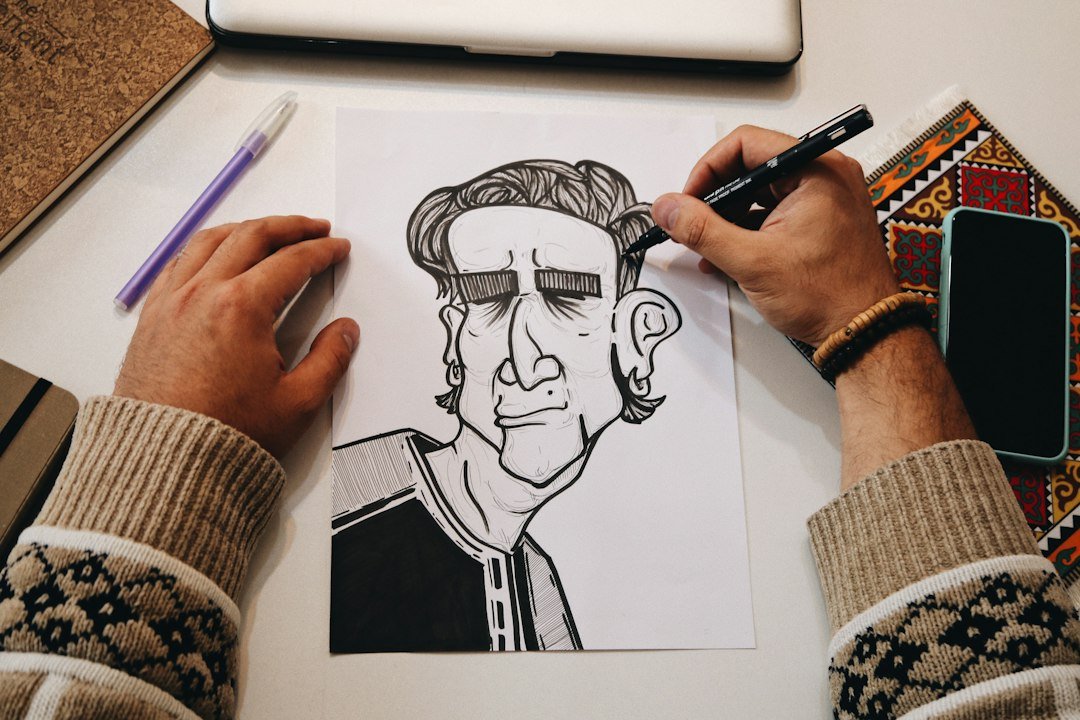
Choosing the best free drawing software comes down to your hardware and preferred workflow. For a full-featured desktop application, Krita is the standout choice, offering pressure support and layer management without a subscription. If you prefer working in a browser, Kleki provides a lightweight alternative that requires no installation. Both options allow you to create professional-quality sketches and illustrations without spending a dime.
Key Takeaways
- Krita is the most recommended free desktop tool, supporting Windows, macOS, Linux, and Android with full pressure sensitivity.
- GIMP remains a powerful raster editor but has a steeper learning curve than Krita for pure drawing tasks.
- Kleki is ideal for browser-based drawing, offering layers and stylus support without any setup.
- Always check your operating system compatibility; Krita does not support iOS or iPadOS.
What makes free drawing software worthwhile in 2026?
The digital art market has shifted significantly, with many paid tools locking essential features behind paywalls. The best free drawing software closes this gap by providing core capabilities like layers, brushes, and export options. Unlike freemium models that limit canvas size or watermarks, these tools are often open-source or fully functional.
This means you can build a portfolio, finish a client project, or just sketch for fun without worrying about a trial expiring. For small business owners or freelancers creating marketing assets, this cost savings is a major advantage.
Krita: The best free drawing software for desktop
Krita is widely considered the top choice for digital painting. It is designed specifically for concept art, illustration, and animation. The software supports pressure sensitivity for any tablet your operating system recognizes. As of late 2026, the current version includes robust brush engines and color management tools.
It is available for Windows, macOS, Linux, and Android. One important note: Krita does not support Apple iPads or iPhones. If you are on a Mac laptop or a Windows PC, you will have a seamless experience.
The interface is modular, allowing you to hide panels you do not use, which is helpful for smaller screens.

GIMP: A powerful alternative for raster editing
GIMP is a veteran in the free software space. While it is primarily an image editor, its painting tools are sufficient for many artists. It excels in photo manipulation and complex layer effects. However, the interface can feel cluttered compared to Krita. If you are coming from Adobe Photoshop, GIMP may feel more familiar.
It is a solid choice if you need to edit existing images as much as you need to draw new ones. The community support is vast, with thousands of tutorials available online. For pure drawing, Krita is generally easier to pick up, but GIMP offers more depth in image processing.
Browser-based options: Kleki and Sketchpad
Not everyone has a powerful computer or wants to install heavy software. Browser-based tools solve this by running directly in your web browser. Kleki is a standout here, offering a clean interface with layers and stylus pressure support where the browser allows it.
It is perfect for quick sketches or when you are on a shared computer. Sketchpad is another free web app, though it lacks tablet pressure support. These tools are ideal for beginners who want to test the waters before committing to a desktop installation. You can start drawing in seconds, with no account creation required.

Understanding pressure sensitivity and hardware requirements
Pressure sensitivity allows your line to change thickness or opacity based on how hard you press. This is crucial for a natural, hand-drawn feel. Most modern drawing tablets, from Wacom to Huion, work with Krita and GIMP out of the box.
If you are using a mouse, you will lose this feature, which can make detailed work frustrating. For casual sketching, a mouse is fine. For professional illustration, investing in a budget tablet is worth the cost. Always check your device compatibility before downloading.
Some free apps have specific driver requirements that can trip up new users.
How to choose the right tool for your workflow
Your choice depends on where you create art and what you create. If you do concept art or character design, Krita is the clear winner. Its animation features are also a bonus. If you do photo editing and illustration, GIMP might save you time.
If you travel often or use public computers, Kleki is the most portable option. Consider your file format needs too. All these tools support standard formats like PNG and JPEG. Krita also supports OpenRaster, which is great for collaboration. Think about your long-term goals.
If you plan to sell artwork, having a consistent workflow is key. Start with one tool and master it before jumping to another.
Common mistakes to avoid when starting out
Many new artists make the mistake of switching tools too often. This prevents you from building muscle memory. Stick with one program for at least a few weeks. Another error is ignoring system requirements. Krita is lightweight, but GIMP can be heavier. On older machines, performance might suffer. Also, do not rely on default brushes.
Spend time exploring the custom brush libraries available for each software. This can dramatically improve your style. Finally, back up your work. Free software does not cloud save automatically. Use external drives or cloud storage to keep your projects safe. For more on managing digital assets, check out our guide to digital productivity tools.
Exporting and sharing your artwork
Once you finish a piece, you need to share it. All the tools mentioned above export to PNG, which preserves transparency. This is essential for logos or icons. If you need a high-resolution print, export as TIFF or PDF. Krita has a built-in export dialog that lets you set dimensions and compression.
GIMP also offers robust export options. Make sure to save your project file (like .kra for Krita) so you can edit it later. Raster files are flattened, meaning you cannot change layers after export. Always keep your source file safe. When uploading to social media, resize your images to reduce file size without losing quality.
This ensures fast loading for your audience.
What to do next
1. Download Krita from the official website and install it on your primary computer. 2. Open Kleki in your browser to test a quick sketch without setup. 3. Try a simple line drawing with both tools to see which interface feels more natural.
How can I set up a custom brush library in Krita?
Why a custom library matters
When you start a new project, the default brush set often feels generic. A personalized library lets you pull the exact texture, opacity, and flow you need without hunting through menus each time.
Step‑by‑step guide
- Open the Brush Docker. You’ll find it on the right side of the workspace; if it’s hidden, press
F6or go to Settings → Dockers → Brushes. - Create a new preset. Click the + New Brush Preset button, name it, and adjust the sliders for size, spacing, and hardness until it matches the stroke you envision.
- Save the preset to a dedicated folder. In the preset dialog, choose Save to and navigate to a folder you’ll keep for custom brushes, e.g.,
~/Krita/brushes/custom. This keeps them separate from the built‑in collection. - Export the preset. Right‑click the new brush and select Export Brush Preset. Save as a
.kppfile so you can share it or back it up. - Load the library on another machine. Drag the
.kppfile into Krita’s Brush Docker or use Import Brush Preset from the same menu.
Common pitfalls
Many users forget to assign a shortcut to their favorite brush, ending up with a slow workflow. After saving a preset, go to Settings → Configure Krita → Keyboard Shortcuts and bind a key combination. Another frequent mistake is mixing vector and raster brushes in the same folder; Krita treats them differently, so keep them in separate subfolders to avoid confusion.
Quick checklist
- Rename each brush with a descriptive tag (e.g., “Soft‑Round‑30%”).
- Store presets in a version‑controlled folder.
- Assign a shortcut for the most used brushes.
- Export a backup after major tweaks.
Can I integrate free drawing software with tablet shortcuts and external tools?
What integration actually looks like
Most free programs expose the same shortcut API that paid suites do. That means you can map tablet buttons, keyboard macros, or even a stream‑deck to actions like “undo,” “switch layer,” or “activate eraser.” The benefit is a smoother flow that mirrors a physical studio setup.
Setting up shortcuts in GIMP
- Open Edit → Keyboard Shortcuts.
- Find the command you want to bind, such as Toggle QuickMask or Zoom In.
- Click the shortcut field and press the tablet button or key combo you prefer.
- Click Save and test the button on a blank canvas.
Using browser‑based tools with external shortcuts
Web apps like Sketchpad don’t have a built‑in shortcut editor, but you can rely on the browser’s extension ecosystem. A lightweight add‑on such as “Shortkeys” lets you assign custom key presses that trigger JavaScript commands. For example, mapping Ctrl+E to the “Export” button saves you a mouse click.
Edge cases to watch for
If you use a multi‑monitor setup, the tablet may send coordinates relative to the wrong screen, causing strokes to appear offset. Calibrate the tablet in its driver settings and verify the active monitor matches the drawing window. Another issue is shortcut conflicts: a tablet button might already be bound to “pan canvas” in Krita, while you intend it for “switch brush.” Resolve this by clearing existing assignments before adding new ones.
Practical tip list
- Start with the three most frequent actions (undo, brush size, layer toggle).
- Test each shortcut in a short sketch session to ensure reliability.
- Document your mapping in a simple text file for future reference.
- Periodically revisit the layout as your workflow evolves.
Related articles
FAQ
Is Krita really free forever?
Yes, Krita is open-source software. It is free to download and use for personal and commercial projects. There is no subscription or hidden fee.
Can I use free drawing software on a tablet?
Krita is available for Android tablets. It does not support iOS or iPadOS. Browser-based tools like Kleki work on any device with a web browser.
What is the difference between raster and vector drawing?
Raster software, like Krita and GIMP, works with pixels. Vector software scales without losing quality. The best free drawing software listed here is primarily raster-based for painting and illustration.